
Contenu
- Mostbet Mobile App: How to Install and How to Use It
- What you need before installation
- Install on iPhone
- First launch: set up your account on mobile
- What the app can do on mobile
- How to use the app: key actions
- Deposits and withdrawals in India
- Verification from a mobile phone
- Updates, stability, and common Android APK errors
- Account security checklist for mobile
- Troubleshooting
- Mostbet Mobile App FAQ

welcome bonus
100%+250 FS
on first deposit









Contenu
- Mostbet Mobile App: How to Install and How to Use It
- What you need before installation
- Install on iPhone
- First launch: set up your account on mobile
- What the app can do on mobile
- How to use the app: key actions
- Deposits and withdrawals in India
- Verification from a mobile phone
- Updates, stability, and common Android APK errors
- Account security checklist for mobile
- Troubleshooting
- Mostbet Mobile App FAQ
Mostbet Mobile App: How to Install and How to Use It
Guide explains how to install Mostbet app safely and use key features on phone in India. Focuses on steps for Android and iOS, plus web shortcut option if you skip app install.
What you need before installation
Device and connection checklist
- A stable internet connection (Wi-Fi or 4G/5G)
- Enough free storage for the app and cache
- Updated phone software (helps reduce install and login errors)
- A phone number or email you can access (for account confirmation when required)
Choose the best mobile option
- Android: app installation is commonly done via an APK from the official website.
- iPhone: use the App Store if available, or use the mobile website and add it to your Home Screen as a shortcut.
- Any phone: the mobile website is a fallback option for access and troubleshooting.
Install on Android
- Open the official website on your phone
Use your Android browser to open the official Mostbet website and find the Android app download section. Avoid third-party “mirror” pages.
- Download the APK file
Download APK and let file complete fully. If connection unstable, use Wi-Fi to prevent corrupted download.
- Allow APK installation
If Android blocks install, use prompt settings to allow browser (Chrome) or file manager to install from unknown sources. Enables APK install.
- Install the APK
Tap APK from Notifications or Downloads, hit Install. When finished, open the app.
- Complete a quick safety check
Check you installed the APK from the official source. Keep Android security enabled and skip modified APK files.
- Confirm the app launches correctly
Open the app, check main sections load, then proceed to login, deposits, or betting.
- Update the app safely
To update, download the latest APK from the official website and install it over the current version. This typically updates the app without deleting your account.
- Uninstall
To remove the app, long-press the icon and choose Uninstall, or go to Settings → Apps → Uninstall.
Install on iPhone
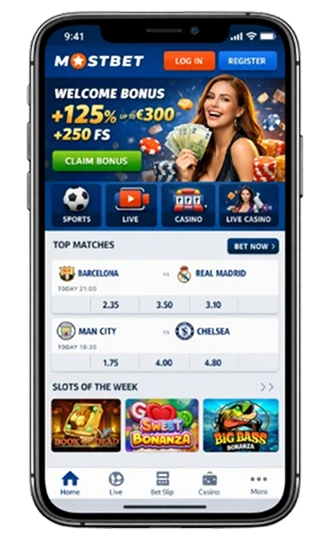
Step 1: Check the App Store first
Open App Store, search for Mostbet. If available for your Apple ID region, install and open.
Step 2: Sign in or create an account
After installation, open the app and sign in. If new, register with a phone number or email and complete required confirmation.
Step 3: If the app isn’t available, use the mobile website
If the app is not in the App Store, open the Mostbet mobile site in Safari as an alternative.
Step 4: Add a Home Screen shortcut
In Safari, tap Share → Add to Home Screen. This creates an icon so you can launch the site like an app.
Step 5: Confirm smooth access
Open shortcut/app and check pages load correctly before making payments or placing bets.
First launch: set up your account on mobile
First app open, sign in with phone or email, or register. Might ask OTP or email verification — finish to activate. Check profile accurate (name, birth date, contact). Correct info avoids later delays.
After logging in, lock down mobile security immediately. Pick unique strong passwords nowhere else, secure phone with PIN or fingerprint. Don’t login on public or borrowed devices; if forced to, logout straight after. Notice weird stuff – mystery logins, strange activity, settings changed – logout instantly, swap password, review history right away.
What the app can do on mobile
Sports section: core features
- Pre-match vs Live: switch between scheduled events and in-play markets.
- Search: find leagues, teams, or events faster than scrolling.
- Markets view: open a match to see main markets (result, totals, handicaps) and additional markets where available.
- Bet slip controls: review selections, adjust stake, and confirm.
- Bet history: check settled vs unsettled bets, timestamps, and outcomes.
- Favourites: save events/leagues (if available in your interface) to reduce repeat searching.
Casino section: core features
- Category filters: browse slots, live tables, and other categories.
- Search by game/provider: find specific games or studios using search and filters.
- Game session stability: mobile performance depends on device RAM/storage and network stability.
- Game history: check your recent activity where the app provides it.
Account tools
The account section in the app handles your balance, verification stuff, and personal settings. Access wallet/cashier here for deposits, withdrawals, transaction history – all statuses and times in one spot. Same area covers profile and verification tools, check KYC status and upload docs when needed for cashouts or account reviews. Responsible gaming controls often live here too – set time limits, deposit caps, loss boundaries to keep things manageable. Account settings also let you control notifications, toggle alerts for odds shifts, results, account changes based on what you want.
How to use the app: key actions
How to place a single bet
- Open Sports and choose a sport (for India, cricket is often listed prominently, but the workflow is the same for any sport).
- Select an event and open it to see markets.
- Tap the odds you want — your selection appears in the bet slip.
- Open the bet slip, confirm it’s a Single bet.
- Enter your stake in INR (or your account currency setting) and review the potential return shown.
- Confirm the bet and then check Bet History to see its status.
How to place an accumulator
- Open Sports and pick your first event.
- Tap odds to add the first selection to the bet slip.
- Repeat for 2–6 more selections (from the same or different events).
- Open the bet slip and switch to Accumulator/Express (label can vary).
- Enter stake and verify every leg (market, selection, and event).
- Confirm and check Bet History for the combined bet entry.
How to find and open a slot game on mobile
- Open Casino.
- Use category filters (Slots / Live / New / Popular — labels can vary).
- Use Search if you know the game name or provider.
- Tap a game tile to open it.
- Wait for the first load (initial launch can take longer on slower devices).
- If the game is slow, close background apps and switch to a stable connection before retrying.
How to check deposit and withdrawal status in the app
- Open Wallet/Cashier.
- Go to Transaction history (or similar).
- Filter by Deposits or Withdrawals.
- Open the transaction to view its status and timestamp.
- If a transaction is pending, avoid repeating the same payment multiple times — check status first.
- Keep references/screenshots until the transaction is fully completed.
Deposits and withdrawals in India
Where to find the cashier
- Go to Account / Wallet / Cashier (naming may vary by interface).
Deposit
- Open Wallet/Cashier → Deposit.
- Select a method available for your account. In India, the cashier may show locally oriented rails (often UPI-based options), cards, or other methods depending on availability.
- Enter the deposit amount in INR and confirm.
- Follow the on-screen instructions carefully (some flows open a bank/app confirmation screen).
- After completion, return to the app and confirm the balance update.
- If the balance doesn’t update immediately, check Transaction history before trying again.
Withdrawal
- Open Wallet/Cashier → Withdraw.
- Choose a method and enter an amount.
- Confirm that the payment details are correct and belong to you.
- Complete verification if requested (KYC is commonly required before or during withdrawals).
- Track the withdrawal status in Transaction history.
- If the withdrawal is held for checks, do not create multiple withdrawal requests — follow the status and any instructions shown.
Verification from a mobile phone
What you may be asked to provide
- A government ID (clear photo)
- A selfie or live photo check (if required)
- Proof of address (sometimes)
- Confirmation that the payment method belongs to you (method-dependent)
How to upload documents cleanly on mobile
- Use good lighting and avoid glare.
- Capture the full document (all corners visible).
- Ensure text is readable and not blurry.
- Don’t edit images heavily (filters/crops can reduce readability).
- Submit and track your verification status inside the account/verification area.
Common reasons verification fails
- Blurry photos or glare
- Cropped document edges
- Name mismatch between profile and documents
- Expired document
- Low-light selfie or poor camera focus
Updates, stability, and common Android APK errors
If you see “App not installed”
Common causes:
- Not enough storage
- A conflicting older build
- Corrupted download
What to do:
- Free up storage (apps, downloads, large videos).
- Re-download the APK using stable Wi-Fi.
- If the issue persists, uninstall the current app build and install the latest APK again.
If you see “Parse error”
Common causes:
- Incomplete download
- APK not compatible with your Android version
What to do:
- Delete the downloaded APK file.
- Re-download from the official source.
- Check your Android version and update if possible, then retry.
If the app is slow or games don’t load
- Switch to a stable connection and avoid network switching mid-session.
- Close background apps.
- Clear cache (Android) for the app, then restart it.
- If issues continue, update the APK to the latest version.
Account security checklist for mobile
Your account security depends on device and habits. Basics: keep phone protected with PIN or biometrics, don’t let anyone use your session. Treat password and codes as personal — never forward, never type into “verification” links from messages, don’t share OTP screenshots. If signing in outside your device, avoid public phones; use your browser in private mode and log out immediately.
Unique password (different from email/social) reduces risk from leaks elsewhere. If someone accessed the account, act quickly. First, change password and check profile details for changes. Then sign out from other devices or sessions in security settings if available. Review bet and transaction history for unfamiliar activity — stakes, events, deposits, withdrawals. If suspicious, contact support from the app or site with timestamps and transaction references for faster response.
Troubleshooting
| Problem | What to try first | If it still doesn’t work |
| APK won’t install (Android) | Allow “install unknown apps” | Re-download on stable Wi-Fi; free storage |
| App loads but pages are blank | Switch network (Wi-Fi ↔ 4G/5G) | Disable VPN/adblock; clear cache; restart |
| Login/OTP not received | Check signal; verify email/number | Retry later; check spam (email) |
| Odds not updating / live delays | Refresh or reopen the event | Close background apps; stabilize connection |
| Deposit/withdrawal fails | Re-check details and limits in cashier | Try another available method; follow transaction status |
Mostbet Mobile App FAQ
Yes, accounts are typically cross-platform. You can sign in from phone and desktop using the same login.
Usually yes. If you don’t want to install an app, a mobile website plus Home Screen shortcut covers most needs.
Get the latest APK from the official website and install the existing version. If it doesn’t work, delete file, re-download on Wi-Fi, check storage before trying again.
Pending means processing ongoing. Failure from method limits, incorrect info, provider decline, or checks. Check Transaction history for status/notes, verify limits/details before retrying or switching methods.
Take clear ID and document photos, profile must match documents, upload with good lighting and all edges visible. If rejected, check the reason and submit better photos instead of the same ones.
Install only from the official source, avoid third-party APK mirrors, and keep your phone updated to reduce compatibility and security risks.